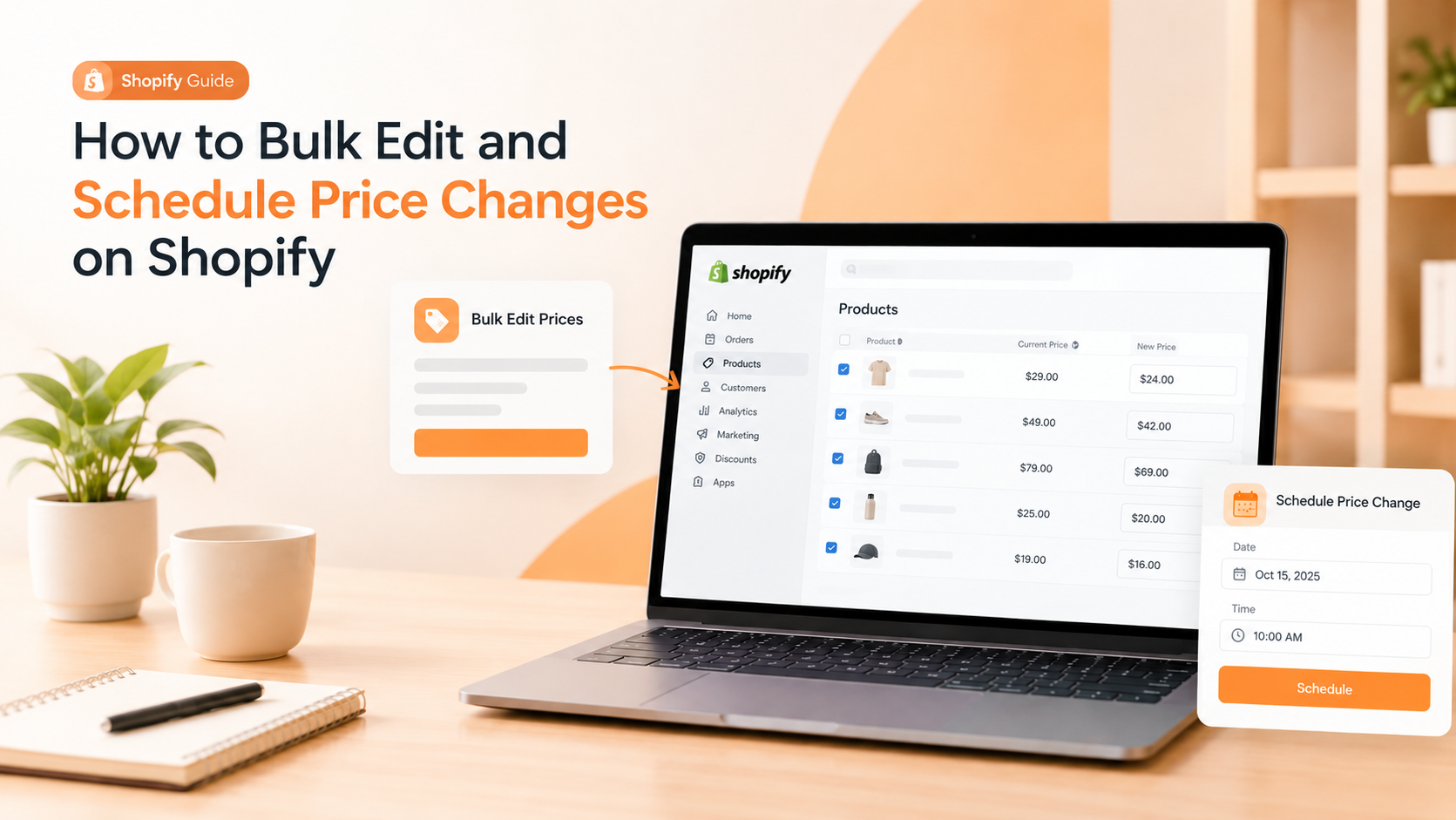
How to Bulk Edit and Schedule Price Changes on Shopify
Updating prices one product at a time is fine when you have ten products. When you have hundreds, or a sale starting at midnight, it becomes a real problem. Whether you are running a promotion, adjusting for rising costs, or launching seasonal pricing, knowing how to bulk edit and schedule price changes on Shopify saves hours and prevents costly mistakes like a sale that never ends.
This guide covers every practical way to change prices in bulk on Shopify, how to schedule price changes to run and revert automatically, and the best practices that keep bulk edits safe. We will start with an honest look at what Shopify can and cannot do on its own.
Can you bulk edit and schedule prices natively in Shopify?
It is worth setting expectations before you start, because the two halves of this task have very different answers.
Bulk editing: yes, within limits. Shopify has a built-in bulk editor that lets you change prices for multiple products in a spreadsheet-style grid. It works well for small batches, but it only handles a page of products at a time (around 50), accepts typed values only, and has no undo button.
Scheduling: no, not natively. Shopify does not natively support scheduling price changes in advance. You can schedule a discount through the Discounts section, but that is different from changing the actual product price on a timer and reverting it afterward. For scheduled price changes with automatic rollback, you need an app.
The three ways to bulk edit prices on Shopify
There are three real methods, and most stores use a combination depending on the job:
| Method | Best for | % / rules | Scheduling | Undo |
|---|---|---|---|---|
| Native bulk editor | Small batches (~50 at a time) | No (typed values only) | No | No |
| CSV export/import | Larger catalogs, percentage math | Yes (via spreadsheet) | No | Manual (keep a backup) |
| Bulk editor app | Large catalogs, rules, sales | Yes | Yes (auto-revert) | Yes (one-click) |
Method 1: Shopify's native bulk editor
Best for quick changes to a small number of products. From your Shopify admin:
- Go to Products and tick the checkboxes for the products you want to change (or select all on the page).
- Click Bulk edit at the top of the list.
- Click Columns and add the Price column (and Compare-at price if you are creating a sale).
- Type the new prices directly into the grid. Changes save as you go.
The catch: you are editing one page of products at a time, you have to type every value by hand with no percentage math, and there is no undo. For a few products it is the fastest free option; for a large catalog it quickly becomes tedious and error-prone.
Method 2: CSV export and import
Best for larger catalogs and percentage-based changes. The idea is to export your products, edit prices in a spreadsheet, and import them back:
- In Products, click Export and download your product CSV. Keep this original file as your backup.
- Open the CSV in a spreadsheet and edit the Variant Price column. Here you can use formulas, for example multiplying by 1.1 to raise all prices by 10 percent.
- Save the file in CSV format, then use Import to upload it back to Shopify and overwrite the existing products.
CSV is powerful for scale and for percentage changes the native editor can't do, but it demands careful formatting, there is no built-in undo, and a mistake applies to your whole file at once. The backup you saved in step one is what you fall back on if something goes wrong.
Method 3: A bulk price editor app
Best for large catalogs, rule-based changes, and anything you want to schedule. Bulk price editor apps add what the native tools lack: you filter the exact products (by collection, vendor, tag, or type), apply a rule (a percentage, a fixed amount, or rounding to .99), preview every before-and-after value, and run the change in one operation. The better ones also schedule changes and let you roll back with one click.
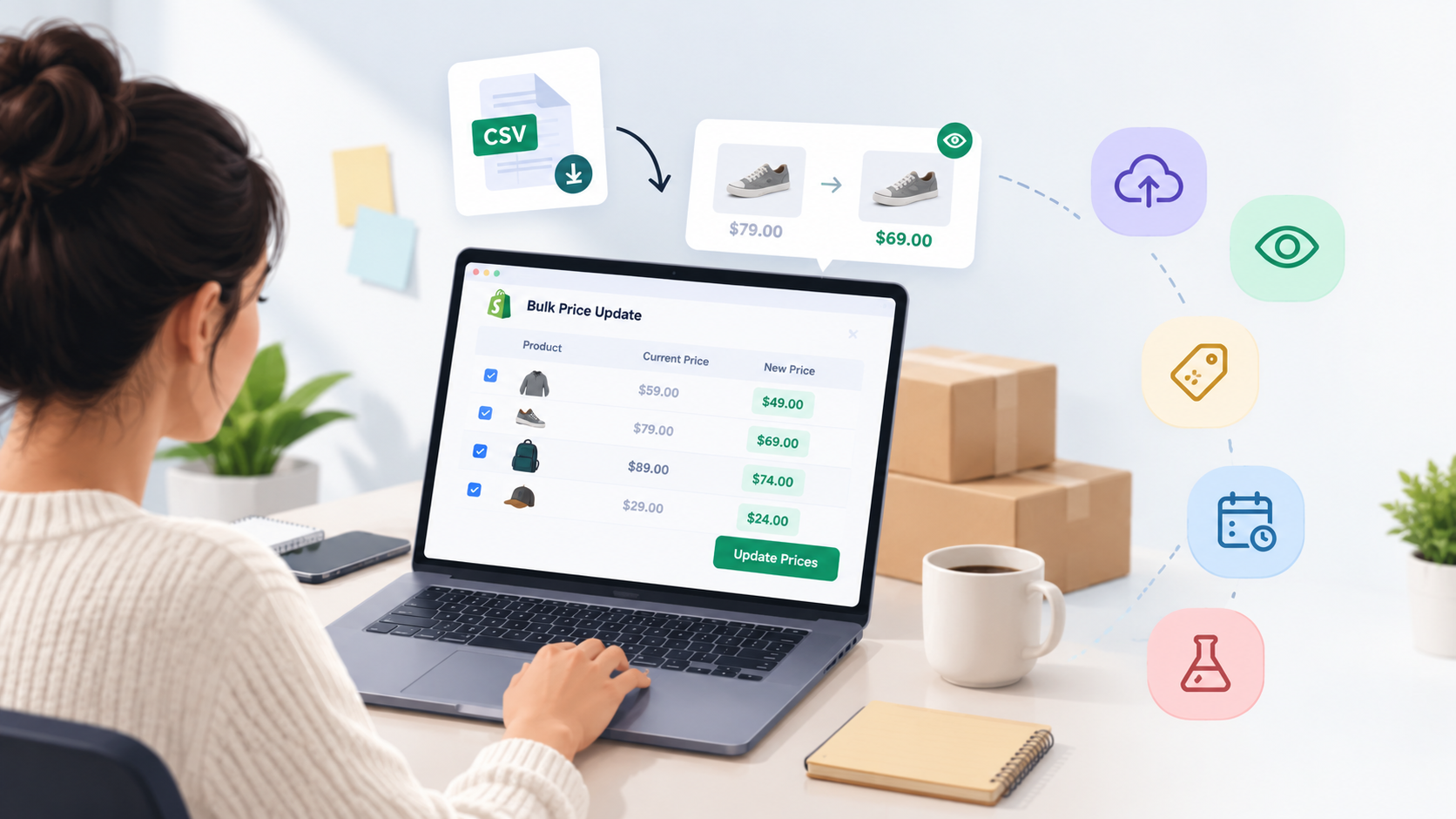
There are several well-reviewed options, many with free plans, including Hextom Bulk Product Edit, Matrixify, Bulk Price Editor Pro, and Springify. If you regularly run sales or manage a big catalog, an app is usually worth it for the preview and rollback alone.
How to schedule price changes on Shopify
Since Shopify can't schedule price changes on its own, this is the main reason stores reach for a bulk price editor app. The typical workflow looks like this:
- Select the products or collections you want to put on sale, and set the new price using a percentage or fixed amount.
- Set a start date and time for the change to go live, for example the moment your sale begins.
- Set an end date and time with automatic revert, so prices return to normal when the sale ends without you touching anything.
- Edit the compare-at price if you want the original price shown with a strikethrough to signal the discount.
This is what prevents the classic mistake of a promotion that quietly runs for an extra two weeks because nobody remembered to change the prices back. Apps such as Springify, NA Bulk Price Editor, and Bulk Price Editor Pro are built around exactly this schedule-and-revert flow.
Best practices for bulk price changes
A few habits keep bulk edits from turning into bulk mistakes:
- Back up your prices first. Export a product CSV before any bulk change. Since Shopify has no native undo, this file is your safety net.
- Preview before you apply. If your method supports a before-and-after preview, use it to catch errors before they go live.
- Use compare-at price for sales. Set the original price as the compare-at price so shoppers see the discount, rather than just lowering the number.
- Schedule with an end date. For temporary changes, set an automatic revert instead of relying on a reminder to switch prices back.
- Test on a small batch. Run a change on a handful of products first to confirm the rule behaves as expected before applying it to everything.
Bulk editing vs automated repricing: which do you need?
Bulk editing and scheduling are the right tools for planned, manual price changes: sales, seasonal pricing, cost-driven updates, and promotions you decide on in advance. You choose the prices, and the app applies them.
There is a different scenario, though. If the reason you keep changing prices is to stay competitive with other stores, bulk editing every time a rival moves is not practical. That is a job for automated, competitor-based repricing, which adjusts your prices as the market changes within rules you set, rather than on a schedule you manage. It is a separate category of tool from a bulk editor. If that sounds closer to your goal, our guide to competitor price monitoring explains how it works.
Price Mirror is one such tool: it tracks competitor prices in real time and reprices automatically within your margin guardrails, so staying competitive doesn't mean manually editing prices again and again. It solves a different problem from bulk editing, so the two can happily sit side by side in a store.
See how Price Mirror automates competitive pricing on the Shopify App Store →
Frequently asked questions
Can Shopify bulk edit prices by percentage?
Not with the native bulk editor, which only accepts typed values. To change prices by a percentage, either edit an exported CSV with a spreadsheet formula, or use a bulk price editor app that supports percentage and rule-based changes.
Can you schedule price changes in Shopify?
Not natively. Shopify lets you schedule discounts, but not changes to the actual product price. To schedule price changes that start and revert automatically, you need a bulk price editor app that offers scheduling with auto-rollback.
How many products can I bulk edit at once?
The native bulk editor works on one page of products at a time, around 50. CSV import and bulk editor apps can handle much larger catalogs, with many apps supporting thousands of products or no limit at all.
How do I undo a bulk price change?
Shopify has no native undo for bulk edits, which is why a CSV backup is essential before you start. Many bulk editor apps add a one-click rollback or price history, so you can restore previous prices if a change goes wrong.
Can I bulk edit compare-at prices to create a sale?
Yes. In the native bulk editor you can add the compare-at price column and set it, and most bulk editor apps let you update compare-at prices in bulk too, so the original price shows with a strikethrough alongside the sale price.
The bottom line
Shopify's native bulk editor handles small, immediate price changes, CSV import covers larger and percentage-based updates, and a bulk price editor app adds the filters, rules, scheduling, and one-click rollback that make bulk changes safe and hands-off. Whichever you choose, back up your prices first, preview before applying, and schedule temporary changes with an automatic revert. Get that routine right and changing prices across your store, on time and without mistakes, stops being a chore.