Free Ways to Track Competitor Prices on Shopify (No Software Needed)
You don’t need to pay for an app to start tracking competitor prices. If you only sell a handful of products, or you just want to get started without spending anything, several free methods let you keep an eye on competitors using tools you already have: a browser, a Google Sheet, and Google Shopping. No installs, no subscriptions.
The honest trade-off is time. Free methods work well at small scale, but they are manual, they have real limits, and they stop being practical as your catalog grows. This guide walks through each free way to track competitor prices on Shopify, the proper process for setting it up, exactly where each method falls short, and the point where a dedicated tool becomes the smarter choice.
Before you start: scope it properly
A good free process starts with focus, because manual tracking does not scale. Trying to watch your entire catalog by hand is how price tracking gets abandoned after a week. Instead:
• Pick your key products. Start with your 10 to 20 highest-revenue items, and anything where you compete closely on price.
• List real competitors. For each product, identify three to five competitors who actually sell the same or a comparable item.
• Decide a schedule. Weekly is enough for most products; check more often only for fast-moving or highly competitive ones.
With that scope set, here are the free methods themselves.
Method 1: A manual tracking spreadsheet
The most reliable free method is also the simplest: check competitor product pages yourself and log the prices in a Google Sheet. It works on any website, including JavaScript-heavy stores that break other methods, and it costs nothing but time.
Set up a sheet with a column for each piece of information you want:
1. Product name and your SKU
2. Your price
3. Competitor name, their price, and the product URL
4. A price-difference column with a simple formula
For the price gap, a formula like this shows how far above or below a competitor you are:
=(CompetitorPrice - YourPrice) / YourPrice)
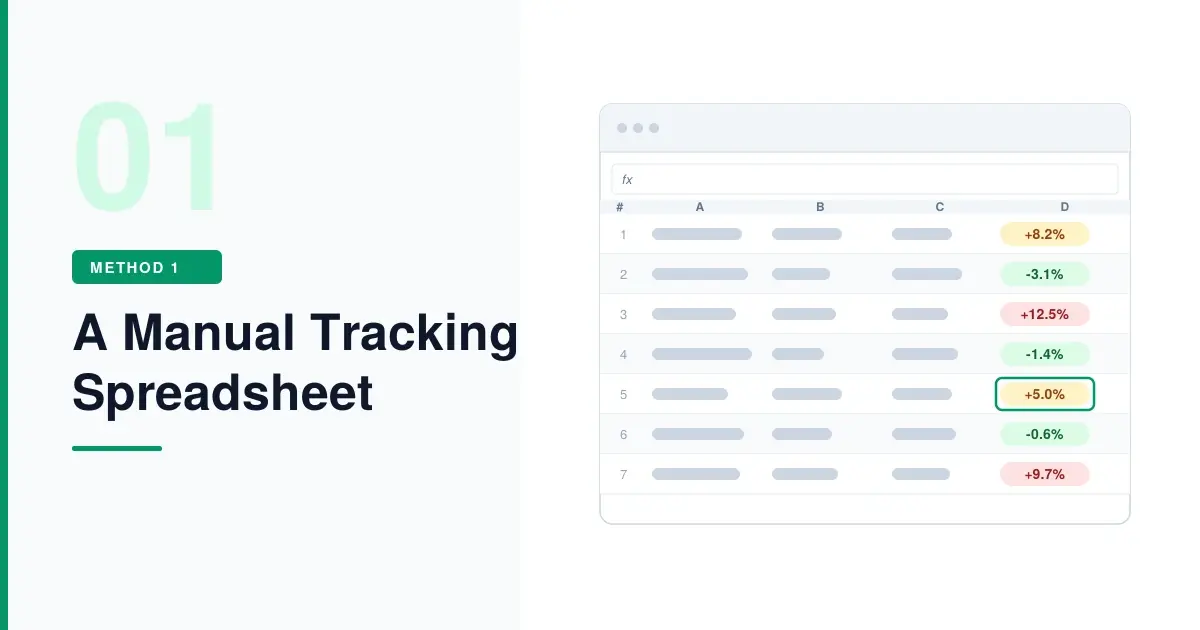
Then visit each competitor URL on your schedule, update the prices, and let the formula flag where you are out of line. It is tedious, but it is dependable and completely free.
Method 2: Semi-automate with Google Sheets IMPORTXML
If you are comfortable in spreadsheets, Google Sheets can fetch prices for you with the IMPORTXML function, which pulls a specific element from a web page using an XPath expression. The basic form looks like this:
=IMPORTXML("https://competitor.com/products/item", "//span[@class='price']")
To find the right XPath, open the competitor’s product page, right-click the price, and choose Inspect to see which HTML element and class hold it. You then point IMPORTXML at that element. Wrapping it to handle errors keeps the sheet tidy:
=IFERROR(INDEX(IMPORTXML(A2,"//span[@class='price']"),1),"Not found")
Be realistic about this one before you spend a day on it. IMPORTXML is genuinely free and clever, but it is unreliable on modern e-commerce sites, for a few reasons:
• JavaScript-rendered prices. Most modern stores, including many Shopify themes, load prices with JavaScript. IMPORTXML only sees the raw HTML before JavaScript runs, so the price element often comes back empty.
• Query limits. Google Sheets caps how many IMPORTXML calls you can run, so large trackers hit limits and slow down.
• It breaks easily. When a competitor changes their page structure or class names, your formula stops working until you fix the XPath.
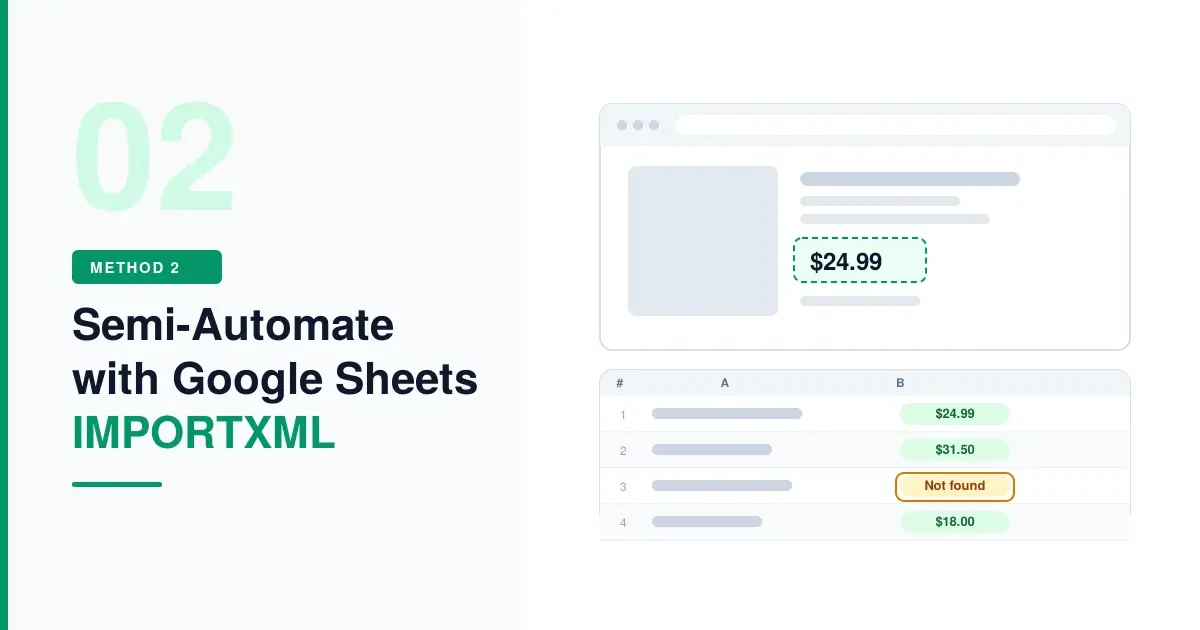
The practical takeaway: IMPORTXML can work for simple, static product pages, but on many real stores it will fail more often than it works. Treat it as a bonus, not a foundation.
Method 3: Google Shopping
For quick spot-checks, search a product on the Google Shopping tab and you will see prices from multiple retailers side by side. It is a fast, free way to gauge where you sit on a specific item without visiting each competitor one by one.

The limit is coverage: Google Shopping only shows retailers who advertise there, so it will miss competitors who don’t, and it is a manual check rather than ongoing tracking. It is best as a sense-check, not your only method.
Method 4: Google Merchant Center price competitiveness
If you already run Google Shopping ads, you are sitting on free competitive data you may never have opened. Google Merchant Center includes a price competitiveness report that benchmarks your prices against other retailers advertising the same products, using the product feed you already submit.

It costs nothing extra if you use Merchant Center, and it is a genuinely useful market benchmark. The catch is that it only applies if you advertise through Google, and the data is aggregated rather than a live competitor-by-competitor view.
Method 5: Newsletters, social, and Google Alerts
Price changes often arrive as announcements. You can catch many of them for free by subscribing to your competitors’ email newsletters, following their social accounts, and setting Google Alerts for a competitor’s name alongside words like “sale” or “discount.”

This won’t surface every routine price change, but it is an easy, hands-off way to catch promotions and sales as they happen, and it pairs well with the other methods above.
The free methods at a glance
Free method
Good for
Main limitation
Manual checks + spreadsheet
Reliable tracking of a few products on any site
Time-consuming, no alerts
Google Sheets IMPORTXML
Semi-automating simple, static pages
Fails on JavaScript stores, query limits
Google Shopping
Quick price spot-checks across retailers
Only shows advertised retailers
Merchant Center price report
Benchmarking if you run Shopping ads
Needs Merchant Center, aggregated
Newsletters, social, Alerts
Catching sales and price drops
Misses routine price changes
Putting it into a repeatable process
Free tracking works best as a simple routine rather than a one-off. A practical weekly process looks like this:
5. Keep your product and competitor list in one Google Sheet.
6. Use manual checks for your most important products, and IMPORTXML only where it reliably works.
7. Spot-check with Google Shopping, and let newsletters and alerts catch sales between checks.
8. Update your sheet on the same day each week so it becomes a habit.
9. Act on what you find, adjusting your prices within your own margin limits rather than blindly matching.
If you’d rather use a free app than build this by hand, our roundup of the best free competitor price tracking apps for Shopify covers the options and exactly what each one gives you for free.
Where free methods fall short
Free methods are a great way to start, and for a small catalog they may be all you ever need. But they share limits that become painful as you grow:
• They don’t scale. Checking dozens of products across several competitors every week quickly eats hours.
• No real-time alerts. Between manual checks, you miss price drops and only notice days later.
• IMPORTXML is unreliable on the JavaScript-heavy stores that make up much of modern e-commerce.
• No automatic repricing. Even once you spot a change, you still have to update your own prices by hand.
• Product matching is manual, so comparing the right variants and bundles takes constant attention.
When a dedicated tool makes more sense
Once you are tracking more than a handful of products, losing real time to manual checks, or missing price changes between them, a dedicated tool becomes the natural next step. This is where it is worth being clear about what is free and what is not.
Price Mirror is not one of the free methods above. It is a paid Shopify app, with a 14-day free trial to test it rather than a free-forever plan, and paid plans starting at just $39 per month. What you get in return is everything the manual methods can’t do: it tracks competitor prices automatically in real time, works on modern stores where IMPORTXML fails, alerts you the moment a competitor changes a price, reprices your products automatically within margin guardrails you set, and can even show competitor prices on your product pages. For ongoing competitor price monitoring at any real scale, that automation is what free methods are quietly costing you in time.
In other words: start free with the methods in this guide, and move to a tool like Price Mirror when the manual work outweighs the saving. You can trial it before paying to see whether it earns its place.
Start a free 14-day Price Mirror trial on the Shopify App Store →
Frequently asked questions
Can I track competitor prices for free on Shopify?
Yes. You can track competitor prices for free by checking competitor product pages and logging them in a Google Sheet, using Google Sheets IMPORTXML on simple pages, comparing prices on Google Shopping, and catching sales through newsletters and Google Alerts. These methods cost nothing but take time and have limits.
Does Google Sheets IMPORTXML work for tracking Shopify prices?
Sometimes. IMPORTXML can pull prices from simple, static product pages, but most modern stores load prices with JavaScript, which IMPORTXML cannot see, so it often returns an empty value. Google Sheets also limits how many calls you can run. It is useful as a bonus, not a reliable foundation.
What is the best free way to track competitor prices?
For reliability, a manual spreadsheet is the best free method because it works on any site. IMPORTXML can save time on simple pages, Google Shopping is good for quick spot-checks, and newsletters and alerts catch sales. Most stores combine a few of these.
Is Price Mirror free?
Price Mirror offers a 14-day free trial rather than a free-forever plan, and paid plans start at $39 per month. It is a paid tool, not one of the free manual methods, but the trial lets you test it before committing, and it automates the tracking, alerts, and repricing that free methods can’t.
How often should I check competitor prices manually?
For most products, a weekly check is enough. Increase the frequency for fast-moving or highly competitive items. If you find you need to check daily across many products, that is usually the sign it is time to automate.
The bottom line
You can absolutely track competitor prices on Shopify for free, with no software, using a manual spreadsheet, Google Sheets IMPORTXML where it works, Google Shopping, and a few alerts. For a small catalog, that may be all you need. Just go in clear-eyed: these methods are manual, IMPORTXML is unreliable on modern stores, and none of them alert you or reprice for you. Start free, keep a steady routine, and when the manual work starts costing you more than it saves, a dedicated tool like Price Mirror is the natural step up, with a free trial so you can see if it fits before you pay.