How to Show Competitor Prices on Your Shopify Product Pages
Here is a moment every Shopify store owner knows too well. A shopper is on your product page, interested and close to buying, and then they open a new tab to check whether they can get it cheaper somewhere else. Once they leave, you have lost control of the sale. The counterintuitive fix is to bring that comparison onto your own page. When you show competitor prices on your Shopify product pages, and you are competitively priced, shoppers get the reassurance they were looking for without ever leaving to find it.
This guide explains what it means to display competitor prices on your product page, why it works, when it makes sense and when to hold off, exactly how to set it up on Shopify, and the best practices that keep it working in your favor.
What it means to show competitor prices on your product page
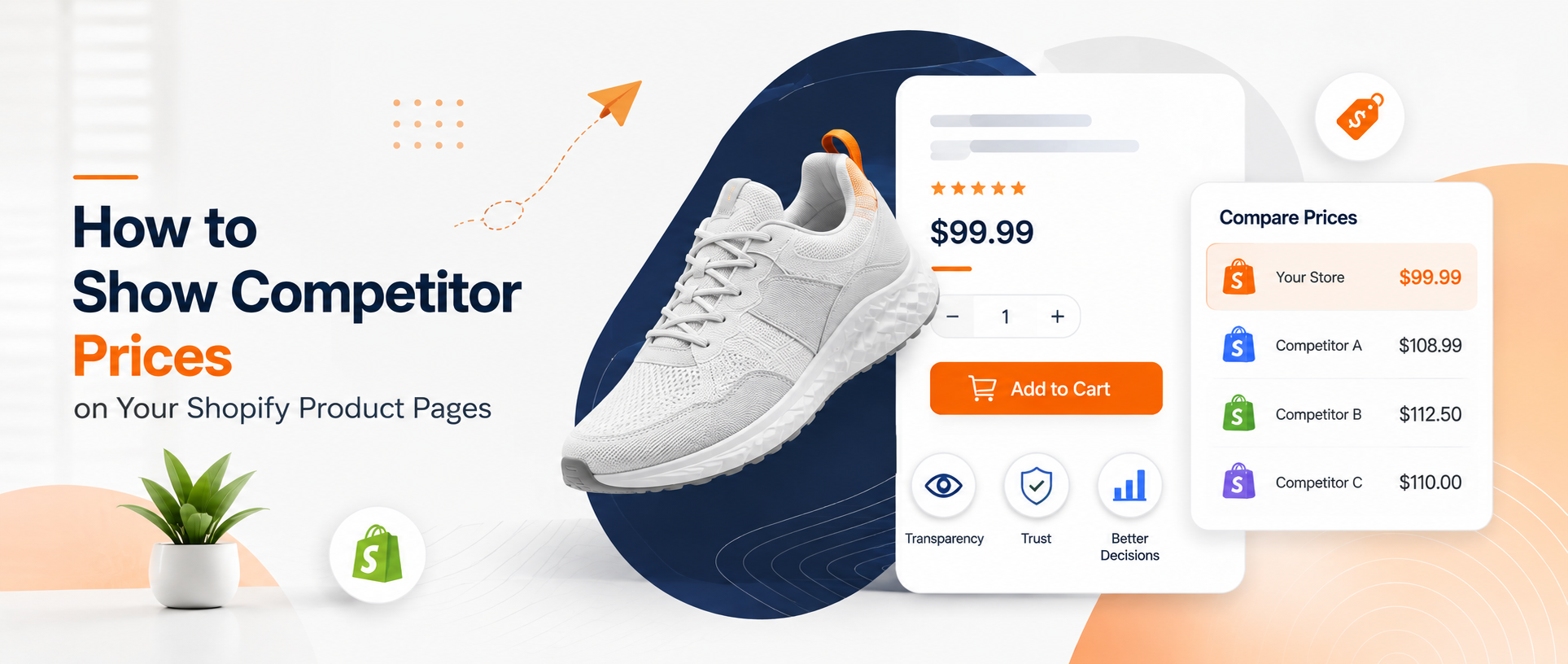
Showing competitor prices on a product page means displaying a small, live comparison next to your own price, so a shopper can see how you stack up at the exact moment they are deciding. Instead of your price sitting alone, it appears alongside what one or more competitors charge for the same product.
In practice it looks something like this on the page:
| Your price | Competitor A | Competitor B |
|---|---|---|
| $49 | $56 | $52 |
A simple, honest comparison shown right where the buying decision happens.
The important part is that this comparison stays accurate. A good setup pulls live competitor prices automatically, so what shoppers see is current rather than a number you typed in once and forgot. That accuracy is what separates a trust-building feature from a liability.
Why show competitor prices on your product page?
Displaying competitor prices sounds risky at first, but when you are priced well it is one of the most effective trust signals you can add. Here is why it works:
- It stops price-shopping bounce. Every tab a shopper opens to compare is a chance to lose them to a distraction or a competitor. Showing the comparison on your page removes the reason to leave.
- It builds trust through transparency. Openly showing how you compare signals confidence. Stores that hide from comparison look like they have something to hide; stores that invite it look fair.
- It reframes your price as the smart choice. Seeing your price next to a higher competitor price turns a number in isolation into a visible deal, right at the point of decision.
- It reduces price-driven cart abandonment. A lot of hesitation at checkout is really uncertainty about whether the price is fair. A comparison answers that question before doubt sets in.
- It shortens the decision. You are doing the comparison research for the shopper, which removes friction and helps them commit faster.
When it works, and when to hold off
This is the part most articles skip, so let's be straight about it. Showing competitor prices helps you only when you are actually competitive. If a competitor is clearly cheaper on a product and you display that side by side, you are handing the shopper a reason to leave rather than stay.
The answer is not to avoid the tactic; it is to make sure you are competitive before the comparison shows, and to control when it appears. That is why displaying competitor prices works best alongside price tracking and pricing rules. You keep your prices competitive using guardrails, and you show the comparison where it helps you. Displaying prices starts with tracking them accurately in the first place, which we walk through in our guide on how to track competitor prices on Shopify.
Show the comparison on products where you match or beat competitors, and lean on repricing to widen the set of products where that is true.
How to show competitor prices on your Shopify product pages
There are two ways to do this on Shopify, and only one of them holds up over time.
The manual way (not recommended)
You could hardcode a comparison into your product template or a rich-text section, typing in competitor prices by hand. It is technically possible, but it breaks fast. The prices go stale the moment a competitor changes theirs, which means you risk showing wrong or outdated numbers that damage trust instead of building it. It also does not scale beyond a few products, and it comes with no rules to stop you displaying a comparison where you are more expensive.
The automated way (recommended)
The reliable method is a dedicated app that tracks competitor prices and displays the comparison on your product pages automatically. You add your competitors once, and the app keeps the on-page comparison live and accurate, with rules that control when and how it shows. Here is how the two approaches compare:
| Factor | Manual (hardcoded) | Automated app |
|---|---|---|
| Setup effort | High, per product | Low, done once |
| Stays accurate | No, goes stale fast | Yes, updates automatically |
| Scales to your catalog | No | Yes |
| Risk | Shows wrong or old prices | Live and reliable |
| Rules and guardrails | None | Built in |
For a broader look at the apps in this space and how they differ on features and pricing, see our comparison of the best price comparison apps for Shopify. Most of them focus only on back-office tracking, so pay attention to which ones can actually display the comparison to shoppers.
Best practices for displaying competitor prices
A few principles keep an on-page price comparison working in your favor:
- Keep it live and accurate. Always pull current competitor prices automatically. An outdated comparison is worse than none.
- Only show it when you are competitive. Use rules so the comparison appears on products where you match or beat rivals.
- Be honest. Show real competitors and real prices. The trust you build is the entire point, and it disappears the moment the comparison looks rigged.
- Match your store's design. Style the comparison to fit your theme so it feels like a native part of the page, not a bolted-on widget.
- Pair it with repricing. Displaying prices and adjusting them work best together: repricing keeps you competitive, and the comparison shows it off.
- Keep it clean. A couple of relevant competitors is more persuasive than a cluttered list. Show enough to make the point, not more.
How Price Mirror shows competitor prices on your product pages
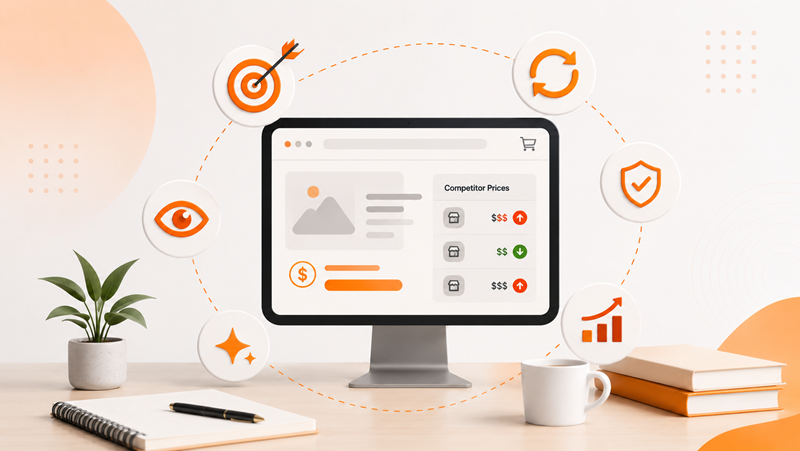
Most price apps stop at a back-office dashboard. Price Mirror is built specifically to do the thing this guide is about: it tracks competitor prices and displays the comparison right on your Shopify product pages, so your pricing advantage becomes visible to the people deciding whether to buy. Here is how it works.
- Add your products and competitors. Install Price Mirror from the Shopify App Store, choose the products you want to compare, and paste in the competitor product links.
- Let it track prices in real time. Price Mirror monitors those competitors automatically and keeps the data current, with no manual checking.
- Set your rules and guardrails. Define minimum and maximum prices and how you want to compete, so you stay competitive and only show the comparison where it helps.
- Turn on the on-page comparison. Enable the comparison widget and style it to match your theme. It displays your price next to competitors', live on the product page.
- Let it stay accurate on its own. As competitor prices change, the on-page comparison updates automatically, so shoppers always see current numbers.
The result is that the same competitor data you would normally keep hidden in a dashboard becomes an on-page reason for shoppers to buy from you instead of leaving to compare. That combination of tracking, repricing, and on-page display in one app is what sets Price Mirror apart.
Try Price Mirror free on the Shopify App Store →
Frequently asked questions
How do I show competitor prices on my Shopify product page?
The reliable way is to use a price comparison app that tracks competitor prices and displays them on your product pages automatically. You add your competitor links once, set your rules, and enable the on-page comparison. Doing it manually is possible but the prices go stale quickly, so it is not recommended.
Is it a good idea to show competitor prices to customers?
Yes, when you are competitively priced. Showing that you match or beat competitors builds trust, keeps shoppers from leaving to compare, and reframes your price as the smart choice. The key is only displaying the comparison on products where you are actually competitive.
What if a competitor is cheaper than me?
Then you do not want to display that comparison as-is. The better approach is to use pricing rules and repricing to stay competitive, and to show the comparison only on products where you match or beat rivals. Good apps let you control exactly when the comparison appears.
Does showing competitor prices require coding?
No. A dedicated app handles it inside your Shopify admin with no development work. You install it, add competitors, and switch on the comparison, then style it to match your theme through the app's settings.
Will a price comparison widget slow down my product pages?
A well-built comparison widget is lightweight and should not noticeably affect load times. As with any app, it is worth checking your page speed after installing, but a good tool is designed to display the comparison without dragging your pages down.
Can I choose which competitors are shown?
Yes. You decide which competitor products to track and compare against by adding their links, so you stay in control of exactly which competitors and prices appear on your pages.
The bottom line
Showing competitor prices on your Shopify product pages flips price-shopping from a threat into an advantage. Instead of losing shoppers to other tabs, you give them the reassurance they wanted right where they are, and you position your price as the fair, smart choice. Keep the comparison live and accurate, only show it where you are competitive, and pair it with pricing rules to widen where that is true. If you want tracking, repricing, and an on-page comparison working together in one place, Price Mirror is built for exactly this, and it is free to try.